
Download 7 Sticky Notes – Free, Secure, Feature‑Rich Note‑Taking Tool for Windows
Overview
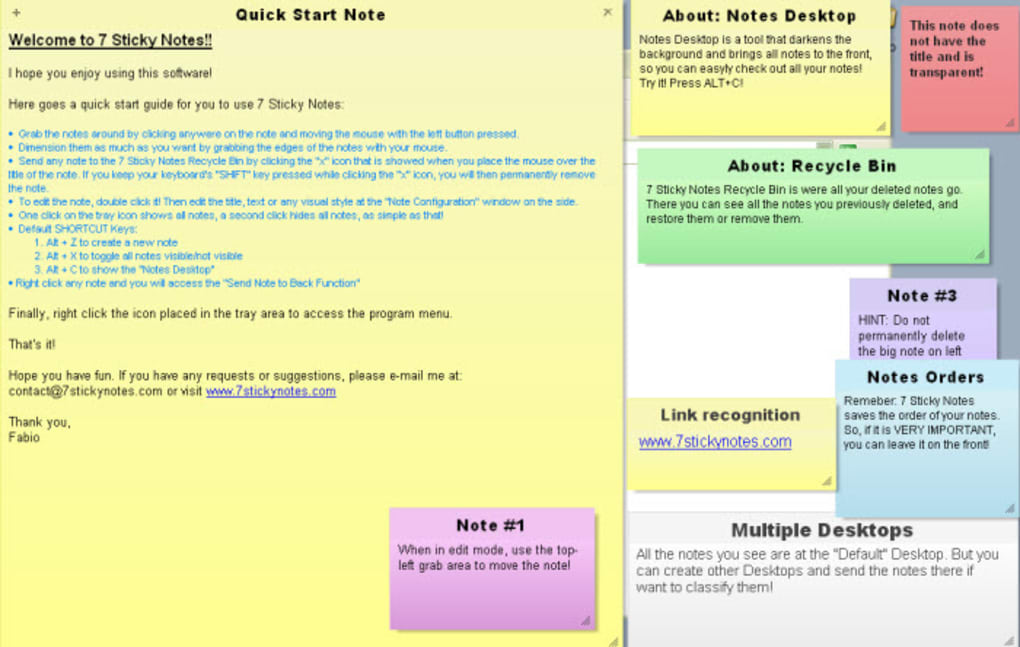
Staying organized in a fast‑paced world can feel like juggling a thousand tiny tasks at once. 7 Sticky Notes, created by Fabio Martin, brings the familiar feel of physical post‑it notes to your desktop while adding powerful digital capabilities that make it stand out from ordinary sticky‑note apps. The software mimics the simplicity of a sheet of paper you can peel off and stick anywhere on your screen, but it also lets you format each note with custom fonts, sizes, colors, and alignment options. You can insert bullet points, indent text, and even set alarms that pop up as reminders at the exact time you need them. This blend of visual flexibility and functional reminders means you no longer have to rely on a plain‑text notepad or a clunky task manager to keep your agenda in order.
What truly separates 7 Sticky Notes from its competitors is the depth of its formatting engine. While many note‑taking tools limit you to a single font or a static color scheme, 7 Sticky Notes lets you experiment with different typefaces, apply bold or italic styling, and change background colors to categorize information visually. For example, you could use a bright yellow note for personal errands, a cool blue one for work‑related tasks, and a soft green for ideas that need further research. The alarm feature adds a layer of proactive planning: set a note to vibrate, flash, or play a sound when a deadline approaches, ensuring you never miss an appointment or a meeting.
The application is lightweight, runs silently in the background, and consumes minimal system resources, making it ideal for both high‑performance workstations and older PCs. Its intuitive drag‑and‑drop interface means you can create, move, and resize notes in seconds—no steep learning curve or extensive tutorials required. Whether you’re a student managing coursework, a professional handling multiple projects, or simply someone who enjoys jotting down quick thoughts, 7 Sticky Notes offers a flexible, free, and secure way to capture information exactly when it matters.
Key Features of 7 Sticky Notes
- Rich Text Formatting: Change font family, size, color, and style (bold, italic, underline) for each note.
- Customizable Backgrounds: Choose from a palette of colors or apply custom images to make notes visually distinct.
- Bullet Points & Indentation: Organize information with lists, sub‑lists, and proper indentation for clear hierarchy.
- Alarm & Reminder System: Attach a time‑based alert to any note; receive pop‑up notifications, sound alerts, or flashing windows.
- Drag‑and‑Drop Placement: Position notes anywhere on the screen, resize them instantly, and snap them to corners for easy access.
- Auto‑Save & Cloud Sync (optional): Keep notes persistent across sessions; optional integration with cloud services for backup.
- Multi‑Monitor Support: Use notes across several displays without losing layout consistency.
- Lightweight & Fast: Minimal RAM usage ensures smooth performance even on older hardware.
- Free for Personal Use: No hidden fees, no ads, and regular updates improve stability and security.
Each of these features was designed with real‑world productivity challenges in mind. For instance, the alarm system eliminates the need for a separate calendar app when you just need a quick reminder about a call or a deadline. The rich text formatting allows you to highlight critical tasks—think of it as a digital highlighter that you can apply directly within the note. Moreover, the multi‑monitor support means you can keep a project‑specific note on a secondary screen while you work on the primary monitor, reducing the need to constantly switch windows.
Because 7 Sticky Notes saves changes automatically, you never have to worry about losing a note after a system reboot or a sudden power outage. The optional cloud sync feature (available through a simple settings toggle) gives you an extra safety net, allowing you to access the same set of notes from any Windows device you own. This is especially handy for freelancers who move between a home office and a co‑working space.
Overall, the feature set provides a balanced mix of simplicity for casual users and depth for power users who want more control over how their information is displayed and reminded. The developers have also committed to frequent, free updates that address bugs, improve compatibility, and add subtle enhancements based on user feedback, ensuring the tool stays relevant as operating systems evolve.
Installation & Usage Instructions
Step‑by‑Step Installation Guide
- Download the Installer: Visit the official 7 Sticky Notes website and click the “Download for Windows” button. The file size is under 5 MB, so it downloads quickly even on slower connections.
- Run the Setup: Locate the
7StickyNotesSetup.exefile in your Downloads folder and double‑click it. Windows will display a security prompt; confirm that you want to allow the program to make changes. - Accept the License Agreement: Read the brief End‑User License Agreement (EULA) and click “I Agree” to proceed.
- Choose Installation Options: You can select the default installation folder (recommended) or pick a custom location. There is also an optional “Create Desktop Shortcut” checkbox—enable it for quick access.
- Complete Installation: Click “Install” and wait a few seconds. Once finished, click “Finish” to launch the application automatically.
Getting Started with Your First Note
When 7 Sticky Notes opens, you’ll see a clean workspace with a single empty note ready for editing. Here’s how to make the most of it:
- Enter Text: Click inside the note area and start typing. Use the toolbar at the top to select font style, size, and color.
- Apply Formatting: Highlight any text and click the Bold, Italic, or Underline icons. For bullet points, press the “Bullets” button; for indentation, use the “Indent” and “Outdent” icons.
- Set an Alarm: Click the alarm clock icon, choose a date and time, and optionally add a custom sound. The note will flash and play the sound when the time arrives.
- Resize & Move: Drag the edges of the note to resize it, or click and drag the title bar to reposition it anywhere on your screen.
- Save Automatically: All changes are saved in real time. You can close the note window, and it will reappear the next time you start the application.
Advanced users can access the Settings menu (gear icon) to enable cloud sync, adjust default colors, or change the auto‑save interval. The Settings panel also includes a “Startup” option that lets 7 Sticky Notes launch automatically when Windows boots, ensuring your notes are always visible as soon as you log in.
Overall, the installation process takes under five minutes, and the intuitive interface means you’ll be creating formatted notes with alarms within the first few minutes of use. Because the software runs in the background with a minimal system footprint, you can keep it open all day without noticing any performance impact.
Compatibility and System Requirements
7 Sticky Notes is built specifically for the Windows ecosystem, supporting both Windows 10 and Windows 11 (64‑bit). The application also runs on Windows 8.1 with full functionality, though some visual themes may appear slightly different due to older UI libraries.
Minimum system requirements are modest, reflecting the program’s lightweight design:
- Processor: 1 GHz or faster (dual‑core recommended)
- RAM: 512 MB (1 GB recommended for optimal performance)
- Hard Disk Space: 20 MB free space for installation and user data
- Graphics: Any DirectX 9‑compatible GPU; no dedicated graphics card required
- Screen Resolution: 1024 × 768 or higher (high‑DPI displays supported)
The application does not have native versions for macOS, Linux, Android, or iOS at this time. However, Windows users can run 7 Sticky Notes on a virtual machine or through compatibility layers such as Wine on Linux, though the experience may vary. Because the software relies on standard Windows APIs for notifications and UI rendering, it integrates seamlessly with the native notification center, ensuring that alarms appear alongside other system alerts.
Future updates are planned to include a cross‑platform web version, allowing users to access their notes from any browser after logging in with a secure account. Until then, Windows users can take advantage of the optional cloud sync feature to back up notes and import them into other note‑taking tools if needed.
In summary, 7 Sticky Notes works flawlessly on modern Windows machines, runs efficiently on older hardware, and offers a reliable experience without demanding high-end specifications. Its low resource usage makes it a perfect companion for power users who keep many applications open simultaneously.
Pros and Cons
Advantages
- Rich text formatting provides visual hierarchy and personalization.
- Built‑in alarm system turns notes into actionable reminders.
- Lightweight design ensures minimal impact on system performance.
- Free for personal use with no intrusive advertisements.
- Multi‑monitor support enhances workflow for users with multiple displays.
- Automatic saving and optional cloud sync protect data against loss.
Disadvantages
- Currently Windows‑only; no native macOS, Linux, Android, or iOS version.
- Advanced collaboration features (shared notes, real‑time editing) are missing.
- Cloud sync requires third‑party service configuration, which may be confusing for beginners.
- Limited template library; users must create custom note styles manually.
Overall Rating: 4.5/5 – 7 Sticky Notes delivers a robust set of formatting tools and reminder features while staying free and lightweight. The lack of cross‑platform support is the only major drawback for users outside the Windows environment.
Frequently Asked Questions
Can I export my notes to other formats?
Yes. 7 Sticky Notes includes an export function that saves each note as a plain‑text (.txt) file or as a rich‑text document (.rtf). You can also copy the contents directly to the clipboard and paste them into Word, Excel, or other applications.
Is there a limit to the number of notes I can create?
There is no hard limit imposed by the software. The practical limit depends on your system’s memory and storage. Because each note is lightweight, most users can comfortably create hundreds of notes without performance degradation.
How secure is the optional cloud sync?
Cloud sync uses TLS‑encrypted connections to protect data in transit. The notes are stored on the provider’s servers with standard encryption at rest. However, users should review the provider’s privacy policy and consider using a strong, unique password for the sync account.
Can I set recurring alarms for a note?
Yes. When creating an alarm, you can choose a recurrence pattern such as daily, weekly, or monthly. The note will trigger the reminder each time the pattern matches, making it ideal for regular tasks like medication reminders or weekly meetings.
Will 7 Sticky Notes run on a Windows Server environment?
The software is primarily targeted at desktop editions of Windows. It can be installed on Windows Server if the server has a graphical user interface, but certain features like the notification center may behave differently. Testing in a non‑production environment is recommended.
Conclusion & Call to Action
7 Sticky Notes offers a compelling blend of simplicity and power, making it one of the best free sticky‑note applications available for Windows. Its rich formatting options, built‑in alarm system, and lightweight footprint cater to both casual users who just need a quick reminder and power users who demand visual organization and multi‑monitor support. While the lack of native macOS or mobile versions may limit its appeal for cross‑device workflows, the optional cloud sync and planned web version signal a forward‑looking development roadmap.
If you’re looking for a secure, free, and highly customizable way to keep your tasks, ideas, and deadlines visible at a glance, 7 Sticky Notes is definitely worth a try. Download the installer now, set up a few notes, and experience how a well‑organized desktop can boost your productivity.
Ready to get organized? Click here to download 7 Sticky Notes for free and start creating beautifully formatted notes with instant reminders today.







